
User manual
Field app
In the field you need big buttons and zero friction. The field app is a PWA: it installs from the browser, no store, and it carries your organization's logo and name.
Installing it
Installation depends on the browser, and the panel shows you the right instructions for yours:
- Android (Chrome/Edge) and desktop Chromium: the "Install the app" button appears at the bottom left, opening the browser's native prompt.
- iPhone and iPad: Safari offers no automatic prompt, so the button opens a two-step guide — tap Share (the square with the up arrow), then "Add to Home Screen" and confirm.
- Safari on macOS: the File → Add to Dock menu.
- Firefox and Vivaldi: they do not emit the signal required, so the button does not appear at all. The app still works from the browser.
If you put it off, the prompt does not keep nagging: it stays hidden for two weeks.
The icon and name of the installed app are your organization's, taken from the brand in the profile — with the caveat that icons are only generated from a raster logo; from an SVG it falls back to the default icons. If you install the app from the field pages, it opens straight onto the field instead of the panel.
How to open it
The field pages live at a dedicated address, /field/ followed by your organization's slug — the same one that appears in the panel's address. You have to be authenticated: you sign in with your own credentials, just as in the panel.
The practical advice is to open it once from your phone, install the app from there and then always use the icon: the app installed from the field pages opens straight onto the field, without going through the panel. Alternatively, keeping it in the phone's bookmarks works just as well.
The day in your pocket
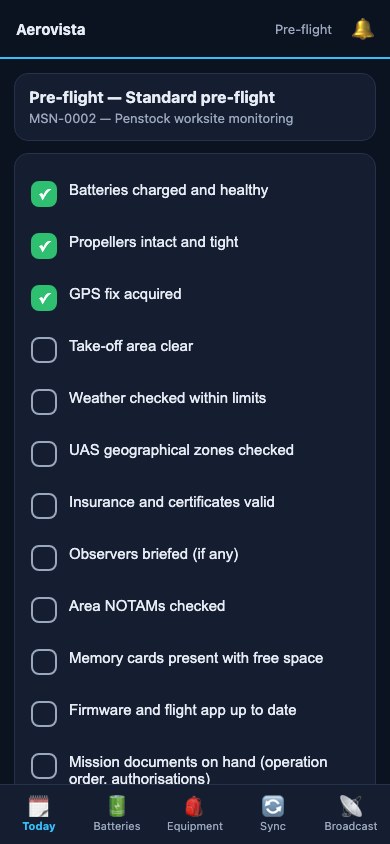 The buttons are large on purpose: it is used with gloves and in the sun. Each item keeps only its tick; name and time are recorded by the signature of the whole checklist.
The home screen, Today, shows the SOS button and then the missions of today and tomorrow: code and title, weather traffic light, times in the organization's time zone — with the date in front when a mission does not start today —, address, ODO protocol, drones and how many of the opened checklists are signed.
At the top right, the Alerts bell collects your latest 50 notifications, the same ones as the bell in the panel: SOS, channels going live, battery alerts, expiries, ticket replies. The number on the bell counts the unread ones; opening the page marks them as read, and the ones that were unread keep the New label for that visit.
From there you open the mission and work on the checklists: items are ticked with big buttons, one per tap, and in the pre-flight and pre-takeoff phases you already find the system automatic checks at the top. Signing requires the checklist to be complete. Signing the post-flight sets the consequences in motion — batteries and equipment going back to "To charge" — and lets you report an anomaly, which opens a maintenance job or an incident on the drone you choose.
In the Batteries tab the packs are grouped by drone, with status, cycles and hours, and there is a button to log a charge. Worth knowing: that button logs a charge of one hour, by convention, not a measured duration; if you need the exact figure, log the charge from the panel with a start and an end.
Under Equipment you see who holds each item: take custody of what is free and return what you hold.
Under Broadcast there is a single button, Start broadcasting: the server gives you a free position — the one you already hold, if you have one — and opens the bodycam page with a signed link in your name. If the ops room has sent you to a specific position, open Pick the position yourself and take it from the list, which shows who is on each position and which ones are on air. The link lasts as long as the organization has set under Bodycam link validity in its profile: 8 hours if nothing is set.
Viewers can read the field pages but cannot perform actions. The one exception, and it is deliberate, is the SOS: anyone who is in the field can press that.
SOS
The red button at the top of the home screen asks the ops room for help — that is, the organization's Owners and Admins. It takes two taps: you press, you confirm, and you can add a message. It is not a long gesture or a press-and-hold, because with wet gloves gestures fail.
The position goes out with the request, if the phone grants it within ten seconds. If GPS is denied or does not answer, the SOS goes out anyway without coordinates and the app tells you so: better an alert with no position than no alert. The ops room gets the alert in the bell, by push and — for anyone with a registered number — by SMS with a link to the map.
It has to be said plainly, and it is written in the app too: it does not replace 112 or the emergency services. It is the sending of a position and a request for help to the people responsible in your organization. In a real emergency, you call 112.
Syncing flights from your phone
The Sync tab is not, despite the name, a sync queue: it is a flight-log importer. You pick the drone once, select the track files from your phone and upload them: they are imported into the logbook and for each one you see the outcome — imported, with duration, maximum altitude and minimum battery; duplicate; or an error with its reason.
You can upload up to 40 files at a time, as CSV or track logs (DJI, Litchi, AirData exports). Re-uploading the same files never creates duplicates.
Not to be confused with the Dronetrake Sync Android app (dronetrake.com/sync), which is a different thing: that one reads the native DJI flight records from the remote controller or the phone and uploads them by itself, 10 Hz telemetry included. This tab is the manual importer inside the field app.
Push notifications
The app and the panel can receive push notifications: a channel going live, battery alerts, an SOS, the day's expiries, a reply to a ticket. You enable them with a discreet button on first access; the browser asks for the permission and you can revoke it whenever you like. Without push, everything still lands in the bell — in the field app, Alerts.
Connectivity: what to expect
The field app works without a network too, but it is worth knowing exactly within what boundaries: the difference between "queued" and "recorded" is the point on which there can be no ambiguity.
Pages you have already seen stay readable. With a network you always see fresh data from the server; without one, the app serves you the last version you had opened. The app keeps Today, Batteries, Equipment and Alerts ready by itself, and refreshes them every time you open it with a network. Any other screen you have never opened with a network has no copy in memory, and in its place you get the "You are offline" page, with Try again and Back to Today.
Operations go into a queue. With no network, ticking a checklist item, signing it, opening a new checklist, logging a battery charge and taking or returning a piece of equipment do not fail: they stay in a local queue on the phone. And it shows: the item gets a dashed tick and the "Queued" label, the button is disabled, and a counter appears at the top of the page — "1 operation queued", "5 operations queued" and so on — spelling out that they are not yet recorded on the server.
This is the rule written into the code and it bears repeating: while it is queued, it is not recorded. Only when the network comes back and the server confirms does the page reload and show you the real data — not the app's optimistic guess.
Retrying is safe. Every action carries a key of its own, and an operation the server has already carried out is not redone: the queue can restart as many times as it needs to without duplicating a battery charge or a custody pick-up. If an operation is rejected by the server, it stops after three attempts and is marked "Failed — tap to discard": it is neither retried forever nor hidden, you discard it and redo it by hand. If in the meantime your session has expired, the app tells you and asks you to sign back in with a network so the queue can be flushed.
Two things never go into the queue, deliberately. The SOS: a request for help that waits for a signal is dangerous, so with no network it fails loudly and you move to satellite. And the upload of flight logs, which needs the files themselves: files do not fit in the queue.
Broadcasting also stays online, since by its nature it wants bandwidth, and the Broadcast page is never kept on the phone: its links expire. The bodycam, though, copes well with a flaky network: during a live stream it reconnects by itself as soon as the signal returns, and it keeps the screen awake while broadcasting.
One last technical caveat: the queue lives in the phone's memory, in a space the browser provides. If the browser does not provide it — private browsing, very restrictive browsers — the app does not pretend: the operation fails with an explicit message, instead of showing a tick that is destined to vanish.