
User manual
Getting started
Welcome. On this page you set up your organization and your team, and you get your bearings on the panel's map: ten minutes, once and for all.
Creating the organization
Signing up takes three things: the name, the country and — if you are already registered as a UAS operator — your UAS operator code (in Italy it is issued by d-flight). The code is optional, but it is worth entering straight away.
The country sets the time zone on its own and determines which national portal you are pointed at to download the geographical zones; it also drives the starting country of the operations manual and whether the tax-regime field is available. The organization language is the one you signed up in, and it governs the panel, emails and PDFs. All of it can be changed later from the organization profile, which gathers your registry details, billing details, the default document texts, the brand, the flight-school programme, data retention and the integrations into seven sections.
At sign-up the organization starts on the free plan, whoever registers becomes the Owner, and the four default checklist templates are created, one per phase.
Every new organization also receives a one-off allowance of welcome live minutes: 60 minutes with a registered UAS operator code, 15 without. If you add the code later the difference is topped up, once only. It is enough to try the live room before choosing a plan.
Inviting the team
From the Team page (inside the Team cluster) you invite colleagues by email and pick their role, which defaults to Pilot:
- Owner — everything, including billing and the plan. There is always at least one Owner.
- Admin — full operational management.
- Pilot — works on missions, checklists, the logbook, broadcasting and the field app.
- Viewer — read-only; in the field app they perform no actions.
- Ops room (ULTRA package) — sees the live room and nothing else: the role for the control-room operator, even one external to the organization.
An invitation is valid for seven days and can be resent or revoked from the pending-invitations panel. Your plan's seat count adds up current members and pending invitations, so a forgotten invitation occupies a seat. Whoever receives it sets a name and a password — and the account is created with its email already verified — or links it to their existing account.
Signing in
You sign in with email and password, and the email has to be verified before you can use the panel.
The alternative is the magic link: from the /magic page you ask for a link, you receive it by email and you are in, no password. The link is valid for sixty minutes and is single-use; once expired or already used, it stops working. So as not to reveal who has an account and who does not, the answer on screen is the same either way.
Two-step verification (2FA) is optional and is enabled from your own profile with any authenticator app, recovery codes included.
Your brand
From the organization profile you upload a logo (an image up to 1 MB) and a color. From there they spread everywhere: the panel header, the client delivery portal, PDFs and exports, the event page and the QR table cards, the field app, and the icon of the installed app — which will carry your name and your icon, not ours.
One useful technical note: the app icons are generated from your logo, but only if it is a raster image (PNG, JPEG or WebP). An SVG logo cannot be converted, and the default icons are used instead.
The dashboard
The first screen sums up what matters: fleet statistics (active drones, flights over the last thirty days, total hours, end-of-life batteries), the first entries on the Expiry board, the Upcoming missions with their weather traffic light, the internal Noticeboard and the Batteries at risk panel — which only appears if there is genuinely something to report, instead of telling you everything is fine.
At the top you find the First steps panel: five steps with ticks (profile, UAS operator code, logo and colour, first drone, first flight) and a bar that fills up. Each step ticks itself as soon as the data is there. Do it all here, in one go opens a page that takes you through them in a row, saving at every step: if you stop halfway, tomorrow you find what you did. The panel stays until you log your first flight; Do not show again closes it for good. Inside it there is also Got a question? Ask the manual: write your question and the assistant answers from this manual, with links to the sections the answer comes from. If that is not enough, Send as a ticket hands it to a person on the team, with the question already written.
The panel's map
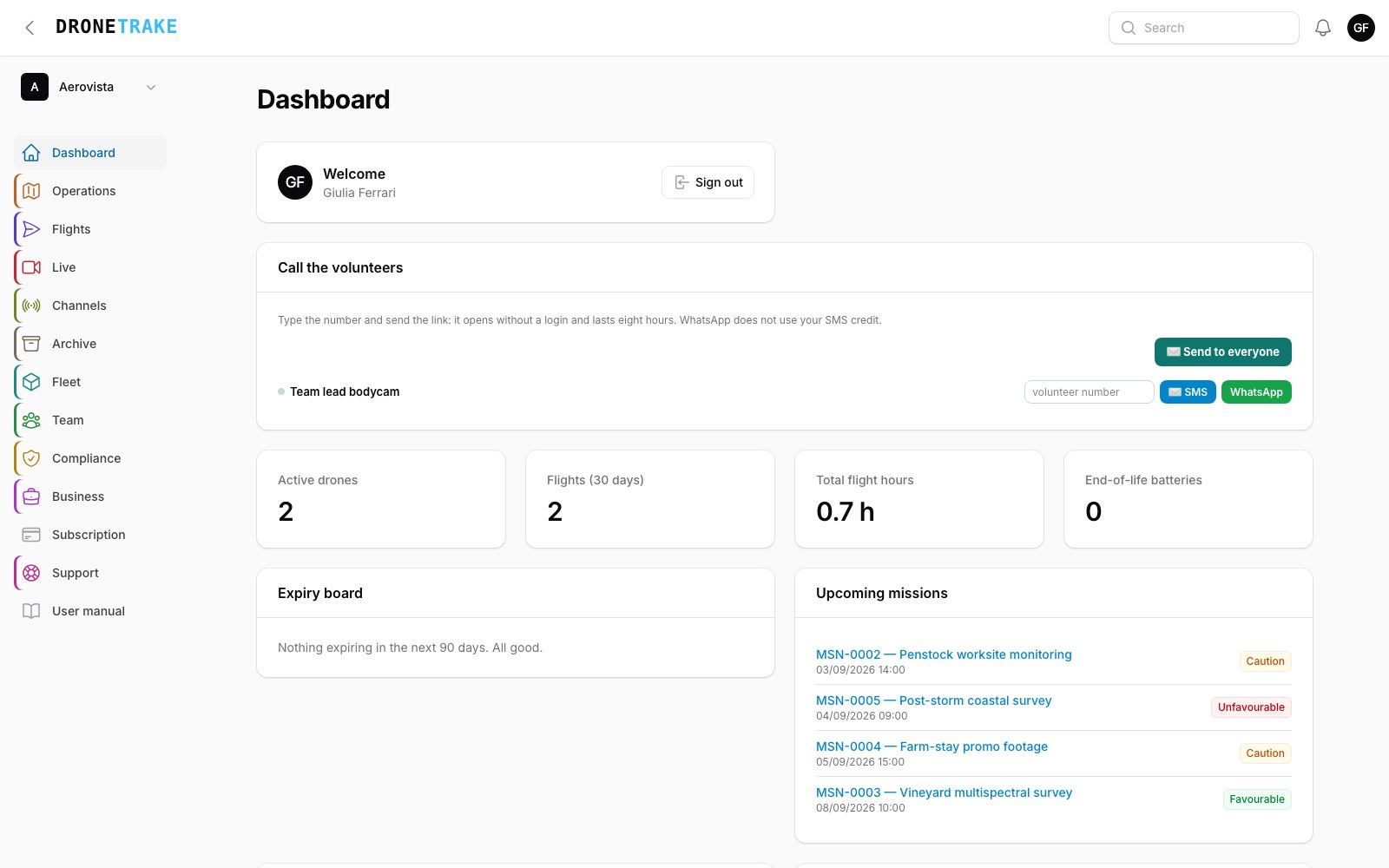 The area names in the left menu are the ones used throughout this manual. The screen changes with updates: what matters are the areas, not the exact position of the entries.
The sidebar is organized into eleven areas, and this manual follows their order:
- Operations — missions, flight plans, operation orders, quick dispatch, "Can I fly here?", UAS geographic zones.
- Flights — the logbook and the pilot logbook.
- Live — what you use during the event: the live room and the Bodycam page for broadcasting.
- Channels — the part of live streaming you prepare before: channels and keys, Sync guests, connecting the drone, AI alerts, people, email forwarding, SMS and SMS sender.
- Archive — what you consult after: overview, public events, folders, the order log, recordings, snapshots.
- Fleet — drones, batteries, continuous coverage, payloads, equipment & communications (with the satellite communicators), DJI devices, guest keys.
- Team — team, pilots & certificates, saved crews, notification forwarding.
- Compliance — expiry board, evidence (if you have switched on the nightly seal), incidents, operations manuals, SOS alerts.
- Business — clients, media, API & integrations, webhooks, the Comitix link and the FlightHub 2 connection, share links, portfolio and, in the Commercial dropdown, quotes, jobs, contracts and invoices.
- Subscription — your plan, payments and receipts.
- Support — tickets to us and your organization's internal noticeboard.
Each area opens onto tabs at the top: those entries are not a second level of menu, they are tabs inside the area. If an area holds nothing you have access to, it does not show up at all. Flight schools and their students also get the School area, and whoever uses ULTRA, or has been invited into it by an agency, the ULTRA room area.
Notifications
The panel's bell collects operational alerts: expiries due today, battery alerts, an SOS from the field, signed contracts, credits running low, a lost drone that has been found.
The same notifications can arrive as browser push. You turn them on with a discreet button that appears the first time round; the browser asks for the permission and you can revoke it whenever you like. If you do not turn them on, everything still lands in the bell.
Where to start
The order that works is the one in the welcome panel: 1) register your drones and batteries in Fleet, 2) upload the pilots' certificates in Team, 3) check the UAS geographic zones: for eight countries they come preloaded and are updated by us every week, for the others you download the file from the national source and upload it yourself, 4) create your first mission in Operations.
From then on most of it fills itself in: flights feed drone hours and the logbook, checklists move battery statuses along, expiries surface by themselves on the expiry board.