
User manual
Operations
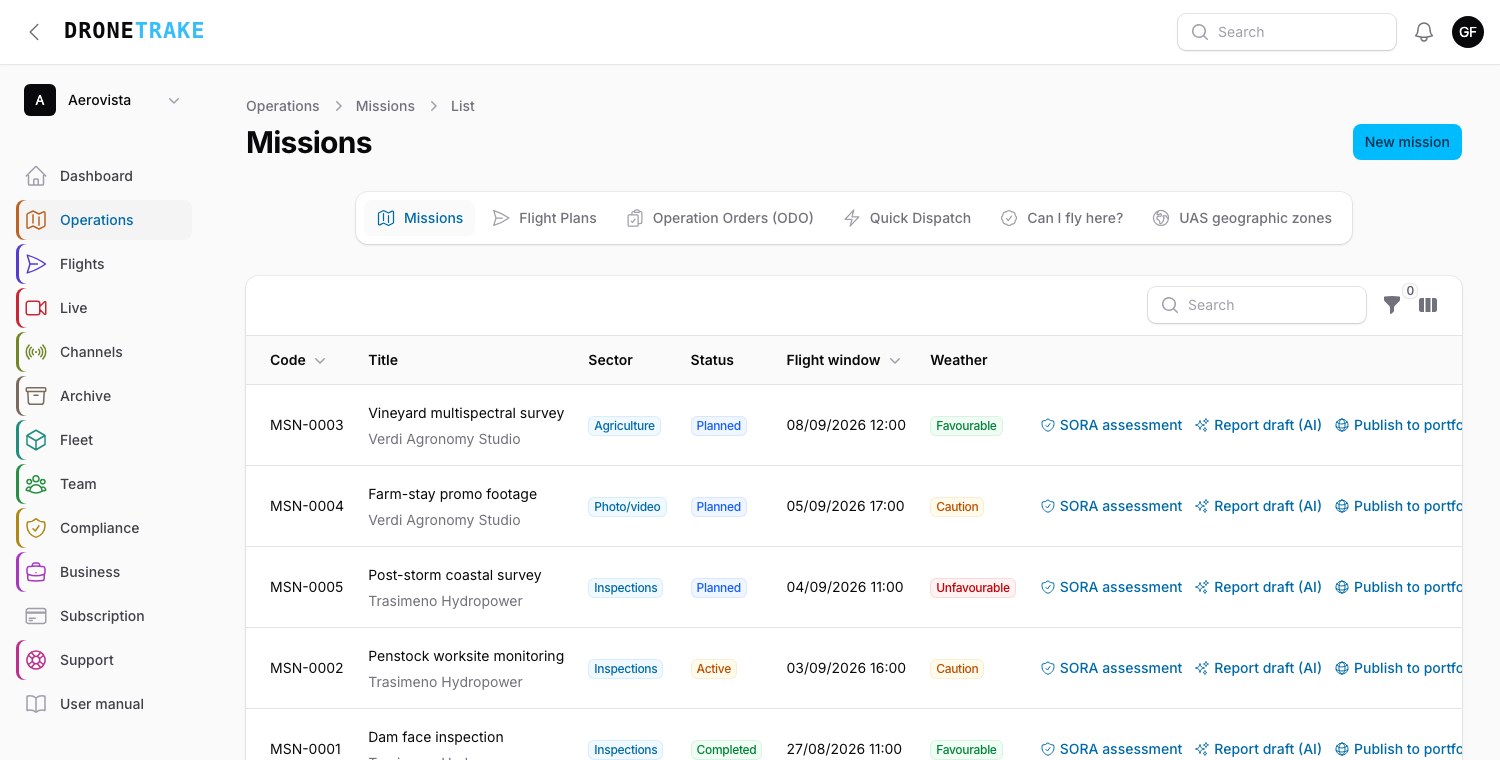
Everything you decide before flying lives in the Operations cluster: missions, flight plans, operation orders, quick dispatch, "Can I fly here?" and UAS zones. The mission is the dossier that holds weather, crew, checklists, flights, live streaming and deliveries together.
Creating a mission
In the form you set a Title, a Sector (Inspections, Agriculture, Photo/video, Mapping / LiDAR, Public safety / SAR, Training, Other), a Status and the Flight window, whose end must come after its start. Client and Operation Order are optional. Address, latitude and longitude feed the weather and the map: without coordinates the weather traffic light cannot be computed.
The mission gets a progressive code per organization — MSN-0001, MSN-0002 and so on. The status is a plain selector — Planned, Active, Completed, Cancelled — that you update yourself: there are no automatic transitions.
At the bottom sits the Risk assessment section, collapsed by default, with four free-text fields: operational scenario, ground risk, air risk and mitigations. That is where you jot down the reasoning that the SORA later formalizes.
PIC and SPIC right in the form
PIC (pilot in command) and SPIC (second pilot) are now chosen in the mission form itself, without going through the Crew tab. Both fields are optional: you can save a mission and assign the pilots afterwards.
One thing to keep in mind: these two fields set the PIC and the SPIC of Crew 1. Any further crews have their own, and you manage them from the Crew tab.
Two rules always hold. First: the PIC and the SPIC must be two different people, because nobody commands and backs up the same flight. Second: whoever holds a flying role — PIC, SPIC or Pilot — must have a certificate valid on the mission's end date, recorded in this same organization.
It is worth knowing how the check works, so you do not misread it: the dropdown lists all members of the organization, expired certificates included, and the refusal comes on save, not by filtering the options. If the end date is not filled in yet the check does not run, because there is nothing to compare against. When you change who holds a role, the previous holder leaves the crew; the other rows are untouched, and anyone already in the crew under a different role keeps it.
Crews, roles and guests
The Crew tab is where the team really takes shape. Each row is a person with a role, and the rows are grouped into numbered crews: a mission can field more than one — two teams on two take-off points, shifts relieving each other — and the PIC and the SPIC are unique per crew, not per mission. With two crews there are legitimately two PICs.
The Add person button inserts a row into the crew you choose; Add crew opens the next one straight away, already set to the PIC role, because as a rule a new crew starts from its pilot in command. The table is grouped by Crew 1, Crew 2 and so on, so you can see at a glance who is with whom.
There are nine roles available:
- PIC (pilot in command), SPIC (second pilot) and Pilot — these are the flying roles: they handle the aircraft and require a certificate valid on the mission date.
- Observer and GCS operator — eyes on the aircraft and the ground control station; no certificate required.
- Assistant, Technician and Driver — the supporting cast a real operation brings along: whoever holds the perimeter, whoever fits the payload, whoever drives the vehicle.
- Trainee (under training) — flies dual-control under the PIC's responsibility. Precisely because they are under training, no certificate is asked of them: if they genuinely handle the aircraft on their own, the right role is Pilot, with the check that comes with it.
One person can hold several roles on the same mission; what the system refuses is the same person with the same role in the same crew, which is a duplicate and nothing more.
External guests without an account
In the field you often have someone alongside you who is not in the organization: the observer from the command, the client's technician, the driver of the vehicle. Creating an account for them for a single day makes no sense, and leaving them out of the crew record makes no sense either.
That is why each crew row has the External guest (no account) switch. Turn it on and, instead of the Person, you enter their Full name and — optional but useful — the Body or company they come from. In reports and lists they appear as "John Smith (Fire & Rescue Service)", which is exactly what you need to read after the fact.
Each row is either a member or a guest, never both and never neither: switching mode clears the previous identity, so no half-filled data is left lying around.
The limit here is clear-cut and deliberate: an external guest cannot hold a flying role. With the switch on, the role menu shows only the seven non-flying roles — GCS operator included — and PIC, SPIC and Pilot are simply not there. The reason is documentary honesty: the platform holds no record of a guest's certificates, so no certificate check is run on them and there is no pretending one was verified. Whoever handles the aircraft has an account in the organization and a certificate recorded here, full stop.
Operation orders
Structured organizations protocol their Operation Orders. Each ODO gets a protocol number, ODO-2026-001 (year plus a three-digit sequence, per organization), and carries a category — from Open A1/A2/A3 through Specific STS-01/STS-02/PDRA to Operational authorization and Certified — a scenario, an operational authorisation number, a location, a validity window and Limitations and prescriptions.
Creating, authorizing, closing and revoking an ODO is reserved to Owners and Admins; other members can read it. The Authorize action is only available from draft, and it records who authorizes and when: it is a signature in the traceability sense, not a graphic or digital signature. From that moment the ODO can no longer be edited or deleted, and only Close and Revoke remain, both tracked in its status.
Missions attach to an ODO from their own form. When you record a flight on an attached mission, the logbook entry inherits the ODO and takes the progressive TO number under that protocol: the reference you read is ODO-2026-001 / TO-3. The sequence runs per order, not per mission, and is assigned when the logbook entry is created.
Quick dispatch
For rescue work and recurring operations you prepare mission templates: name, sector, address and coordinates, expected duration (from 10 to 480 minutes, 60 by default), plus the checklist template, the drone and the primary live channel to carry along.
The Activate now button immediately creates a mission that is already active, with a window running from now for the expected duration, the drone attached, the live channel linked and the weather refreshed if the network allows. Whoever activates it joins the crew as a pilot if they hold a certificate valid today, otherwise as an observer — never as PIC or SPIC, which stay a deliberate choice. Client, ODO, equipment and the rest of the crew are not copied: you add those once the mission is open.
ED-269 geographical zones
For thirteen countries the zones come preloaded: Belgium, Bulgaria, Denmark, Finland, Ireland, Italy, Luxembourg, the Netherlands, Norway, Portugal, Slovakia, Sweden and Switzerland, whose file also covers Liechtenstein. We download and update them from the official sources, and without you doing anything they answer in Can I fly here? and on the public /fly page, together with the Natura 2000 protected areas. For Italy that data is the AIP, meaning the zones of crewed aviation: the classification for drones is in the d-flight file. Sweden's official file holds only the special zones: the ones around airports are checked by the airports row.
A country is in only if reuse of the data is allowed where the data is published or in an official act. Cyprus, Estonia, Iceland, Latvia and the United Kingdom publish their zones but do not allow reuse, or say nothing: there the traffic light gives no answer on zones and points you to the official source. Who is in, who is out and why, with the link and the sentence that decides each country, is in the source register.
To see the zones on your maps, and for the other countries, from the UAS geographic zones page you upload your country's file. The format is the European standard ED-269 in JSON, and its GeoJSON serialization (ED-318, the one published by Estonia and Ireland) is accepted too; the United Kingdom uses the NATS dataset. The file can be up to 50 MB.
The page tells you where to download it: the official source is mapped for twenty-two countries, and the portal you are pointed at is your organization's — d-flight for Italy, DIPUL for Germany, Géoportail for France, ENAIRE for Spain, Austro Control for Austria, and so on. Only in Italy does the download require an operator account on the portal.
Two things to know. An organization has a single active zones file: every upload replaces the previous one. And when a new AIRAC cycle comes into force (every 28 days) the page warns you that the file belongs to the previous cycle and is worth downloading again.
The UAS zones page holds no map: it shows the file's status, the national source and the upload. Your file's zones are shown on the mission map, colored by restriction — red for prohibited zones, orange where authorization is required, yellow for conditional ones, blue for the rest — with altitude limits and the zone's message in the popup. The same zones appear in the flight plan editor and under the flight track in the replay. The preloaded zones do not appear on these maps.
Can I fly here?
The Can I fly here? tab brings into the panel the question you ask yourself on the job site. You type an address or a place, paste the coordinates as you have them or choose use my location, and press Check: the answer is for that point. For the geographical zones the page uses your organization's zones file when it covers the point; otherwise it answers with the preloaded zones, where we have them, and elsewhere it asks you for the file. In Italy, where we only have the AIP, finding no zone is not a clearance, and the page says so. At the top the page shows the state of your file: if it is missing, or from an AIRAC cycle that has since been superseded, it tells you so and offers Upload the zone file.
Flight plans
The flight plan holds together two geometries that usually live apart: the area — the polygon you fly inside, with its maximum height — which is the authority's language, and the route — the waypoints with their altitudes — which is the remote controller's language. The bond between the two is the value: the route must stay inside the area and under its ceiling, and the editor checks it as you draw.
The editor works in four modes: Area (one click per vertex: vertices are numbered and draggable, double-click removes them), Take-off and Landing (one click each; by default landing equals take-off), Route (one click per waypoint, with the altitude editable in the panel). Under the drawing live the organization's UAS geographic zones, coloured by restriction: you plan inside the constraints, not from memory. Every plan also carries its operation category — Open A1/A2/A3, STS-01, STS-02, PDRA, operational authorisation, certified — the vocabulary the operation presents to the authority with.
The issues panel always says what is missing, by name: «waypoint 2 is outside the area», «waypoint 3 at 200 m exceeds the 80 m ceiling». A plan saves even when incomplete — work is never thrown away — and the list shows its state: ready for filings in green, or the number of issues in amber with the detail in the tooltip. A plan can be attached to a mission.
When the plan is ready come the acts. Export for DJI Pilot 2 generates the WPML KMZ to import into Pilot 2's route library — heights relative to take-off and a prudent speed, to refine on the controller; the .plan covers MAVLink autopilots via QGroundControl. And the application dossier (PDF) gathers the operator with its UAS code, category, WGS84 vertices, route, the 1:1-rule suggested ground risk buffer and the linked mission's risk assessment, with the SHA-256 fingerprint of the geometries in the footer: change the plan after printing and the fingerprint no longer matches. Said plainly: the dossier prepares the application — filing stays with you, on the authority's portal.
For DJI Fly (Mini, Air, Mavic) there is no official import, but DJI Fly reopens the file of a mission it has saved. Save a placeholder mission with any two points in DJI Fly, copy its .kmz file from the controller (folder Android/data/dji.go.v5/files/waypoint/) and upload it to the plan: you get the route back with the same file name and the same drone codes, to put in place of the original. It is an unofficial method and a DJI Fly update may change it: try it first on a short route.
After the survey flight, «Check photo coverage» tells you how many photos see each point of the plan's area. You choose the photos on your computer, even a whole folder and up to 5,000, and the browser reads only the header of each: position, height relative to take-off, camera pitch and heading, focal length. The photos are not uploaded. The map colours the area green where the photos reach the chosen threshold (5 by default), yellow where they are at least half, red where there is a gap. Only photos with the camera pointing down (beyond −70°) are counted; the height is corrected with the terrain between the plan's take-off point and the photo's position, where terrain data exists, and the result says whether the correction was made. Every check stays in the plan's history. If there are gaps, «Create the recovery mission» prepares a new plan that re-flies only those: the zones under threshold, widened by half a photo so the new photos tie in with the old ones, covered in a serpentine with a downward shot at every point, at the flight's median height and starting from the zone nearest to take-off. Every check enters the evidence chain: the plan's area, the photos read and the result are signed when the check is made, sealed every night and given a qualified timestamp if the mission must stand up before third parties; the mission report and the public verification page show them with their fingerprint, and the signed report can be downloaded from the coverage page. The plan exports for DJI Pilot 2, DJI Fly and QGroundControl like any other.
Checklists
Checklists are organized into four phases: Pre-flight, Pre-takeoff, In-flight and Post-flight. When you register the organization you already find four ready-made templates, one per phase. The items of an individual checklist can be edited freely; the starting templates, on the other hand, have no management page today.
In pre-flight and pre-takeoff checklists the system inserts the automatic checks at the top, already ticked if they pass and already failed if they do not:
- crew certificates valid at the mission's end, for flying roles only — trainees and external guests stay outside the check;
- ODO authorized and valid, covering the whole window — the item only appears if the organization uses operation orders;
- the weather light: red fails, yellow passes with a note, and if the weather has not been fetched yet the item comes up ticked (there is no data to fail on);
- at least one drone assigned to the mission;
- drone insurance not expired (an untracked policy does not fail the check);
- at least one charged battery for every drone on the mission;
- remote controller paired and charged for every drone — the item only appears if you inventory your remote controllers;
- payload calibrations for the payloads fitted to the mission's drones.
A checklist can only be signed when complete: if even one item is unticked, the signature is refused. Once signed it records who and when, and it can no longer be edited or deleted.
Signing the post-flight sets the consequences in motion: the charged batteries of the mission's drones move to "To charge", and so does any equipment with an internal battery taken into the field. The dialog also asks whether there was an anomaly: choosing maintenance opens an inspection on the drone, choosing incident opens an incident linked to the mission. Completed checklists and blank templates can both be printed to PDF.
SORA
The SORA assessment action on a mission opens a single dialog that applies the SORA 2.0 methodology (JARUS/EASA, Specific category): you pick the operational scenario, the aircraft's characteristic dimension — prefilled from the mission's largest drone — the robustness of the M1, M2 and M3 mitigations, and the initial and residual ARC.
The engine computes iGRC → final GRC → SAIL → required robustness of the 24 OSOs, saves the outcome into the mission's risk assessment and lets you download the PDF. Watch out for one case: if the final GRC exceeds 7 the operation is outside the Specific category, so no SAIL is computed and no OSO is listed.
The document says so explicitly: it is a decision-support aid, not a formal SORA and not a declaration to the authority. The values must be verified, completed and signed off by you, in line with your national competent authority.
Weather
 Green, amber or red at a glance: the day's decision is taken here, before opening the mission.
Over the flight window the mission shows a traffic light computed on the window's maxima, and the worst condition always wins: red at 40 km/h of wind, 55 km/h of gusts or a 60% chance of precipitation; yellow from 25 km/h of wind, 35 km/h of gusts or 30% precipitation; green below all three.
Next to the light you get the hour-by-hour detail: wind including at 120 meters, cloud cover and cloud base, visibility, temperature and dew point, sunrise and sunset with the golden hour, and the geomagnetic Kp index from NOAA (from Kp 5 it is a storm). Where there is a station nearby, raw METAR and TAF are added along with the VFR/MVFR/IFR/LIFR flight category.
The data comes from open-meteo, which is free and redistributable: that is why the snapshot can be saved and printed into PDFs. If the organization configures a Windy key, the data comes from there instead, falling back automatically to open-meteo if anything goes wrong. The weather is refreshed with the Refresh weather button on the mission; the weather report PDF, on the other hand, is attached from Quotes and Invoices, as evidence of the window you chose.