
User manual
Channels & archive
Two menu areas gather the part of live streaming you prepare before and consult after. Channels holds the channels with their keys, the Sync guests, connecting the drone, the AI alerts, People, the forwarding groups, SMS and the SMS sender; Archive holds the overview, the public events, the activation folders, the order log, the recordings and the snapshots. During the event you sit in Live instead, in front of the room.
Channels & keys
A channel is a video source, and it comes in two types: Drone (RTMP/SRT) or Bodycam (browser). How many channels you can have is set by your plan.
Every drone channel has a stable RTMP address with its key appended. You configure it once in the flight app or the encoder and it stays valid until you regenerate the key. If you do regenerate it — there is a dedicated action, with a confirmation — the old key stops working instantly and you have to update the drone or the encoder. A bodycam has no key to regenerate, because it publishes from the browser.
The How to stream dialog gives you the address ready to copy, along with the endpoint for publishing from the browser. On DJI drones connected via the Cloud API, actions appear to start and stop the live stream from the platform, with the quality selectable between Adaptive, Smooth, Standard (720p), HD (1080p) and Ultra HD: out in the field nobody types anything. Those actions only appear if the DJI integration is enabled on the installation and there is a remote controller paired.
Managing channels and keys is reserved to Owners and Admins; pilots broadcast the bodycam from the Bodycam page and the drone from the flight app.
Sync guests
Whoever holds a remote controller without having an account — the technician from another agency, the volunteer from another committee — gets into the Sync app with organization and an 8-digit code, instead of typing a long token by hand. You send them the code on WhatsApp or read it out over the radio: the phone is the guest's identity, the one the code arrives on. By default it is valid for 30 days and then expires on its own. A guest is neither edited nor deleted: the code is issued, sent and revoked, and the row stays to say who got in and until when they could.
Connect your drone
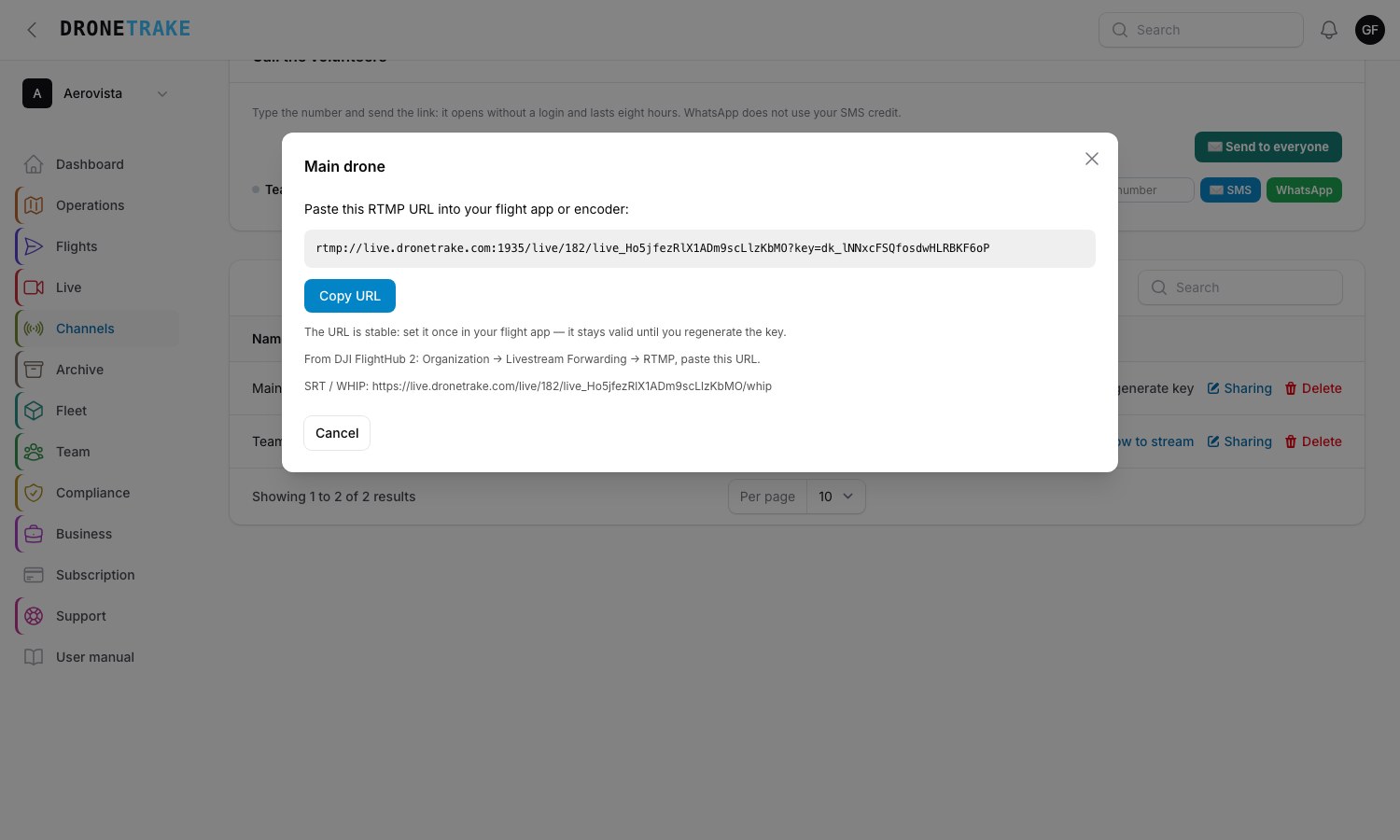 Address and key are copied from here, even from a second screen. The key belongs to the channel, not to the account: if you regenerate it, whoever is broadcasting must update it.
Not every drone can send RTMP on its own. The Connect your drone tab opens the "Stream your drone" guide: you pick the channel and see three ways, each with the address ready to copy.
Way 1 — Native RTMP from DJI Fly. In DJI Fly you open the flight view, go into the settings, choose Transmission, then Live Streaming and Custom RTMP, paste the address and start. It works on the recent range: Mini 3, Mini 4 Pro, Mini 5 Pro, Flip, Air 2S, Air 3 and 3S, Mavic 3, Mavic 4, Avata, Neo. It does not work on the Mini 2, Mini SE and older models: for those, go to the third way. On resolution the guide is precise: with the RC 2 controller and its built-in screen the stream goes out at 720p, whereas with a controller plus a phone you get 1080p.
Way 2 — HDMI from the remote controller. If you have an RC Pro or a smart controller with an HDMI output, you need a USB capture card (around 15 euros). The computer sees it as a webcam: from there you broadcast from the Bodycam page by picking it as the source, or from OBS using the RTMP address.
Way 3 — screen-cast app. On the phone attached to the remote controller you install Larix Screencaster, add an RTMP connection with the channel's address, start the screen capture and go back to the pilot app. To be clear about it: Larix is a third-party app (Softvelum), the free version has a per-session time limit and Premium is paid. In exchange it works today, on any drone, with no extra hardware.
Inviting viewers
Every channel has its own invited viewers: a personal link for each, with a name, an optional email and an optional expiry. The guest watches from the browser, without an account. If you leave the option on, they get a notice when you go live — with a limit of one message every ten minutes, so as not to become a nuisance.
For invitations that have to stand up in a formal setting there are three extra turns of the screw: the Access code (the viewer goes through a branded unlock page, like the client portal), the IP restriction (one or more addresses or CIDR networks: outside the list, access is denied) and the QR with a PIN to hand over in person. An invitation can be revoked and reactivated whenever you like; once revoked, the link opens nothing. For the client or the control room it is, quite simply, a link.
People
The directory of the people who can be reached during a duty, each with the organization they belong to: in a room with several associations it is what lets you call up just one of them and say how many people each one brought. The same directory underpins the forwarding groups. It is not a staff management system: here is who can be reached right now and which organization they are from.
Email forwarding
Forwarding groups are address books with a name and a colour — «Control Room», «Command» — where you put, once, the people who need to be able to watch the live feeds. Then, from the channel, Send to a group: a personal invitation goes out to each of them, with the expiry you choose (eight hours covers an operation; for an event, extend it). Three taps instead of a list of addresses to copy out under pressure.
SMS and SMS sender
The SMS entry is the log and the sending of the organization's SMS. There is no free text: you pick a template and who receives it, and the log stays as proof of who sent what, to whom and when.
In SMS sender Owners and Admins propose the name the volunteer sees on their phone, declaring that they have the authority to do so; Dronetrake approves it. Until yours is approved, ours goes out.
AI alerts
On a channel you can switch on Near-real-time SAR: the AI samples the live feed and flags possible detections — people, silhouettes, hotspots — in the room and in the bell, with the frame attached. On drones with a thermal camera there is the thermal pre-filter, which analyses only when the DJI thermal feed reports a hotspot above the threshold and consumes fewer credits.
The rule has to be said in the panel's exact words: SAR is an ALERTER that assists the human eye in the operations room: it NEVER replaces human monitoring of the live feed. The expected latency between scene and alert is 10–20 seconds. Sampling costs AI credits per hour of live streaming, stops on its own when the stream ends or credits run out, and every alert stays available for the last 24 hours.
Archive overview
Archive opens on the Overview: a tree that starts from the type of activation and goes down to each time it happened and who was there, with numbers that open the lists of recordings and snapshots, already filtered. If you activate the room before a duty, recordings and snapshots end up in its folder instead of a flat list.
Public events
For weddings, races and public events there is event mode, available on the Ops plan. You compose the event with a title, a subtitle, a date and time, a featured source, any other sources and the color: the public page comes out branded, with a countdown before and a closing message after, in your organization's language.
Delivery to the audience is over HLS, which holds up at scale. Viewers can pick their view, and you can give each source a name that means something — "Church", "Backstage". With directing on, the audience instead follows the source you put on air from the director console, with a switch that lands in about six seconds; the console's previews are internal and do not consume the GB allowance.
The QR table cards print in one click: an A4 PDF with eight cut-out cards, in your logo and your color.
Order log
Every communication sent from the room to the bodycams — quick orders, free text, alarms — stays in the Order log, read-only, with the sender, the recipients and the sent / delivered / read state with its times. It is the after-the-fact proof of what was ordered, to whom and when: for an agency it is the difference between "I remember" and "it is on record". Owners and Admins can see it.
The activation folders
When the room opens an activation (see Live), everything born in that window carries its stamp — and under Archive → Folders you find the full account. The list shows every activation with its type, state, the DRILL mark when it was an exercise, and the counts: live sessions, recordings, snapshots, messages, alarms, markers. Reading is reserved to Owners and Admins; nothing is created, edited or deleted from here — a folder is what it is.
The folder page is a journal generated from the facts: «bodycam 1 live at 07:46 (40.92, 9.50)» is written by nobody — the data says it. In order, with times: opening and closing, every live session with its first GPS fix, the recordings, the snapshots (with the people/vehicles count when one was run), the orders with delivered and confirmed, the alarms, the floor requests, the markers placed and resolved with coordinates and notes, and — where there was one — the activation chain with the organizations' answers. If there are markers, the folder also shows the operation map, resolved ones faded. The position trails close the page, channel by channel.
Emergencies work first and file later: material born without an open activation is not lost. The «Claim orphaned material» action groups orphans into natural time windows (the four live sessions between 02:10 and 04:30 are the same night; the one at 15:00 is not) and creates a retroactive folder, born already closed, stamping only what was orphaned inside the window — whatever a real activation had already claimed is never touched.
Snapshots in the archive
Archive → Snapshots gathers the frames taken from the room and the photos shot from the field: for each one, who took it — the room operator or the person on the bodycam link — when, from which channel, the position and the activation it belongs to. The double-index rule applies: you see both your organization's snapshots and those that others took from your channels, because it is your operator being framed. Opening and downloading go through the same door and carry the watermark of whoever downloads: what leaves the system leaves signed.
On your own snapshots, if AI is enabled, there is «Count people and vehicles»: the analysis counts visible people and vehicles by category — cars, vans, trucks, buses, motorbikes, emergency vehicles — and writes the result onto the snapshot. The ≈ symbol says it is a crowd estimate, not an exact count; it costs one processing credit per analysis, and the platform repeats it at every step: it is an assisted estimate that helps the human eye, not an official figure. The result appears in the column, in the detail and next to the snapshot in the folder journal.
Encrypted recordings
Sessions can be recorded, and the files are encrypted with a key belonging to your organization: a new symmetric key for each file, itself protected with your organization's RSA key. Nobody can open them without it. For each recording you get the channel, the start time, the size, the linked mission and the SHA-256 fingerprint of the plaintext content.
The download decrypts on the fly as it goes: a plaintext copy never lands on disk. Deletion is irreversible and it tells you so beforehand.